Test & publish
Publish, schedule and unpublish
How publishing works, what each status means, how to schedule a function with start and end dates, and how to unpublish, archive, duplicate or delete it.
Saving a function never changes your checkout. Publishing does: it creates or updates the function in your Shopify store, and Shopify starts running it at checkout.
Publish a function
Click Publish… in the builder. The first time — or whenever the function isn’t live — FunctionFlow asks how it should go live:
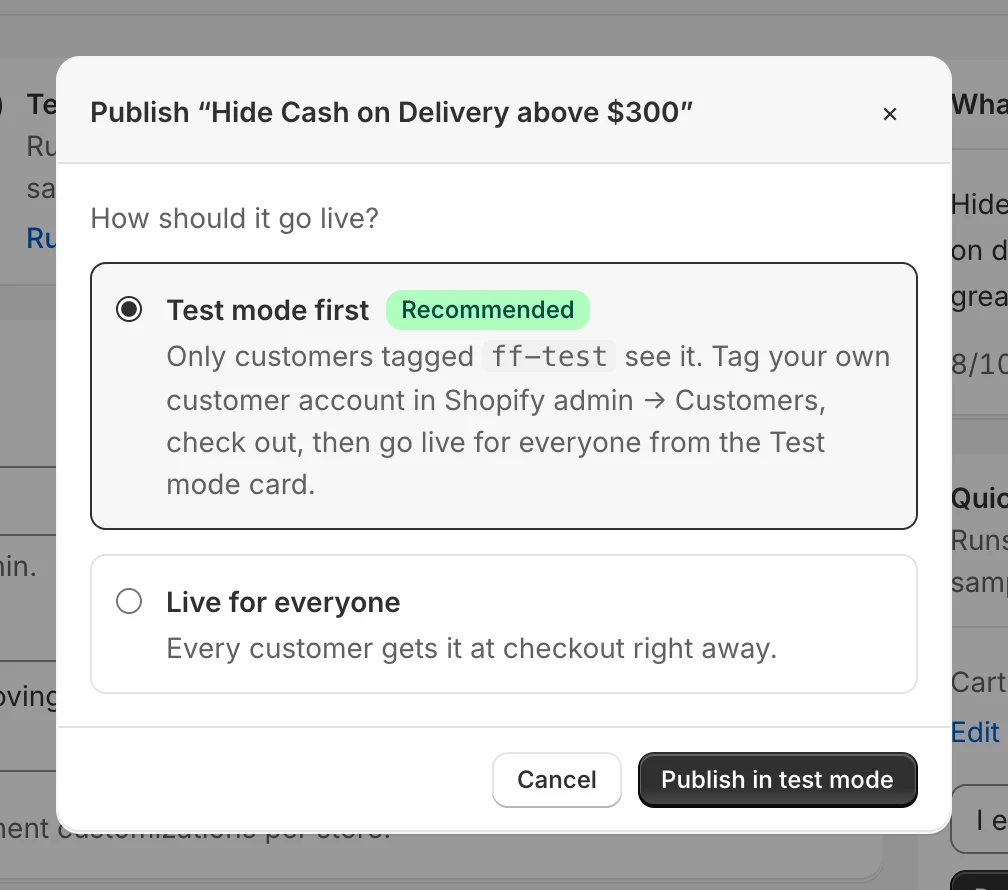
- Test mode first (recommended) — only customers tagged
ff-testsee it. See Test mode. - Live for everyone — every customer gets it, right away or from the start date.
Once a function is live, the button reads Save & publish and publishes your changes straight away, keeping its test mode setting.
When you publish, FunctionFlow creates the matching object in Shopify:
| Kind | Shopify creates | Find it in Shopify admin |
|---|---|---|
| Discounts, free and discounted shipping | An app discount (automatic or code) | Discounts |
| Shipping rules | A delivery customization | Settings → Shipping and delivery |
| Payment rules | A payment customization | Settings → Payments |
| Checkout rules | A checkout validation | Settings → Checkout |
The Status card’s View in Shopify link opens it. See FunctionFlow in your Shopify admin.
Statuses and badges
| Status | Meaning |
|---|---|
| Draft | Saved, not running at checkout |
| Active | Published and running |
| Scheduled | Published with a start date in the future |
| Archived | Removed from Shopify; history kept |
| Publish failed | Shopify rejected the last publish — the builder shows Shopify’s message |
Extra badges:
- Test mode — only customers tagged
ff-testsee it. - Unpublished changes — you’ve saved changes to a live function that aren’t published yet. Customers still get the published version.
- Schedule waiting for an admin visit — see below.
Change a live function safely
Edit a live function as much as you like and click Save draft — checkout keeps running the published version and the function shows Unpublished changes. When you’re ready, click Save & publish. The subtitle (v4 · published v3) and the Status card show which version is live.
Schedule a function
Use the Active dates card to start a function later or end it automatically — for a sale, a holiday cutoff or a weekend offer.
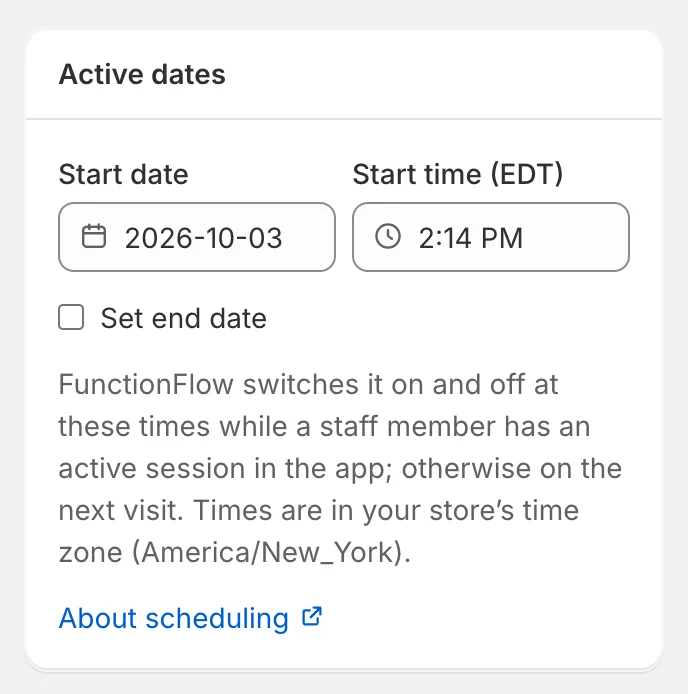
- Set the Start date and Start time. Leave them as they are to start as soon as you publish.
- Tick Set end date and choose the End date and End time (it suggests one week later, at 11:59 PM).
- Publish. With a future start, the status is Scheduled.
Times use your store’s time zone, shown next to the time fields.
Who switches it on and off:
- Discounts — Shopify starts and ends the discount at the exact times. In FunctionFlow, the status may keep showing Scheduled or Active afterwards; Shopify’s Discounts page shows the live state.
- Shipping, payment and checkout rules — FunctionFlow switches them on and off at the scheduled times. It does this using a staff member’s recent session in the app; if nobody from your team has opened FunctionFlow in about a day, the function shows Schedule waiting for an admin visit and switches as soon as someone opens the app.
Tip: For a repeating window — every weekday from 5 to 7 PM — use time conditions instead of active dates.
Unpublish, archive, restore and delete
- Unpublish — in the builder header (or switch off Live on the Functions page). The function stops running at checkout and becomes a Draft. Its Shopify discount or customization is switched off but kept.
- Archive — in the Status card or the Functions page menu. Removes the function from Shopify and keeps its history. Archived functions don’t count toward your plan’s limit.
- Restore as draft — brings an archived function back as a draft.
- Delete — in the Functions page menu. Removes the function from FunctionFlow and from Shopify. This can’t be undone in the app.
Duplicate, export and import
- Duplicate makes a draft copy called Copy of …. A discount code gets -COPY added so it doesn’t clash.
- Export downloads a
.functionflow.jsonfile. Import on the Functions page turns it into a new draft — handy for moving rules between stores.
If publishing fails
The builder shows The last publish failed with Shopify’s message, and your draft is kept. The most common causes are in Troubleshooting.