Getting started
Create your first function
From install to a live rule in about five minutes — pick a goal, adjust the rule, test it on a sample cart and publish it in test mode first.
This guide walks you through building a real function — free shipping on orders over $150 — from start to finish. The same steps work for every kind of function.
Before you start
- Install FunctionFlow AI from the Shopify App Store and open it from Apps in your Shopify admin.
- Choose a plan. Every plan starts with a free trial and is billed through your Shopify invoice. See Plans and billing.
Step 1: Pick what you want to do
On Home, click Create function (or open Functions and click Create function). You’ll see What do you want to do? — every starting point, grouped by kind.
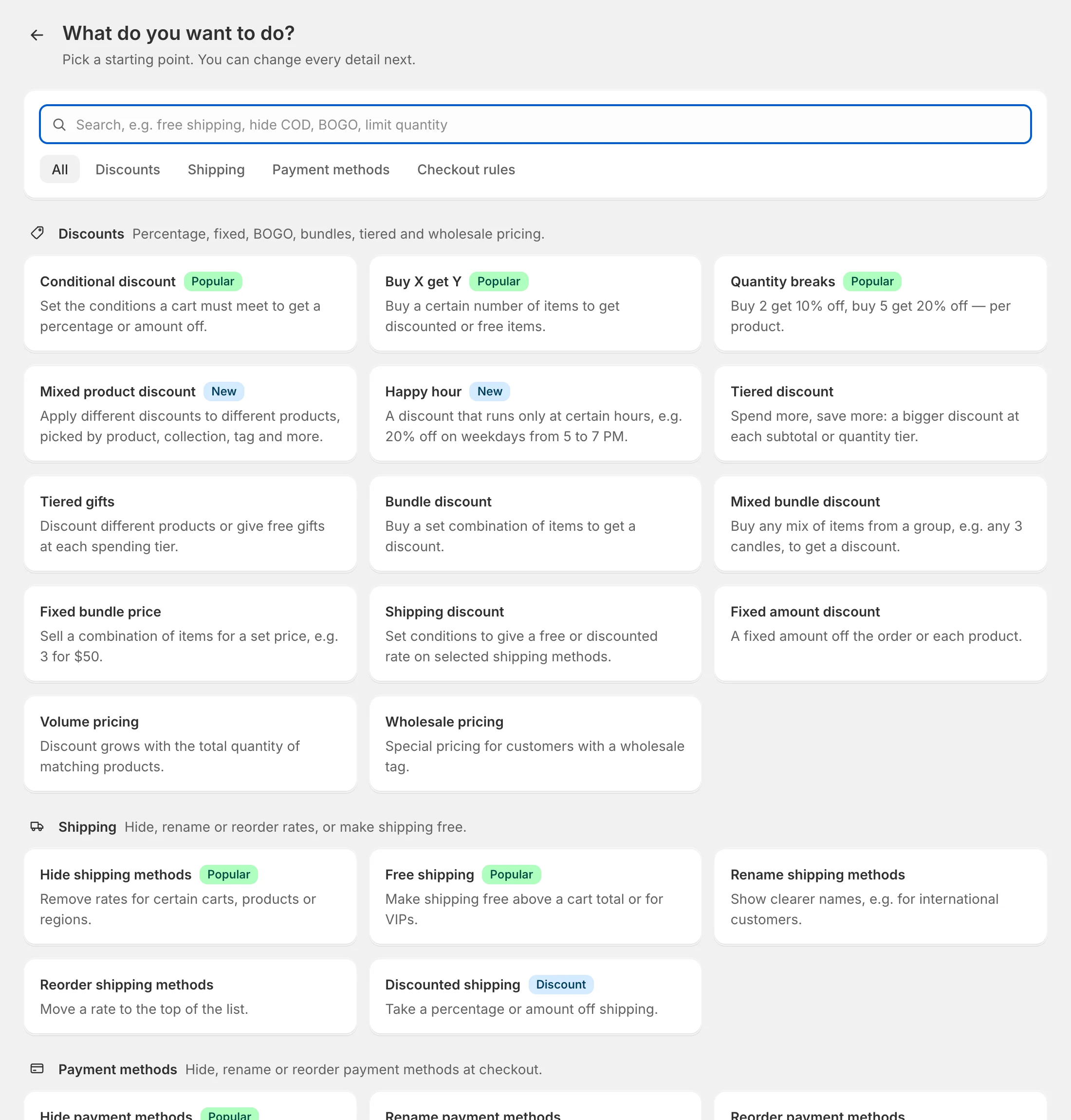
Type what you’re after in the search box — for example free shipping — or open the Shipping tab and choose Free shipping. The builder opens with the rule already set up.
Tip: Not sure where to start? Start from a template gives you complete, tested rules, and Describe it to AI builds one from a sentence.
Step 2: Adjust the rule
The builder has everything on one page:
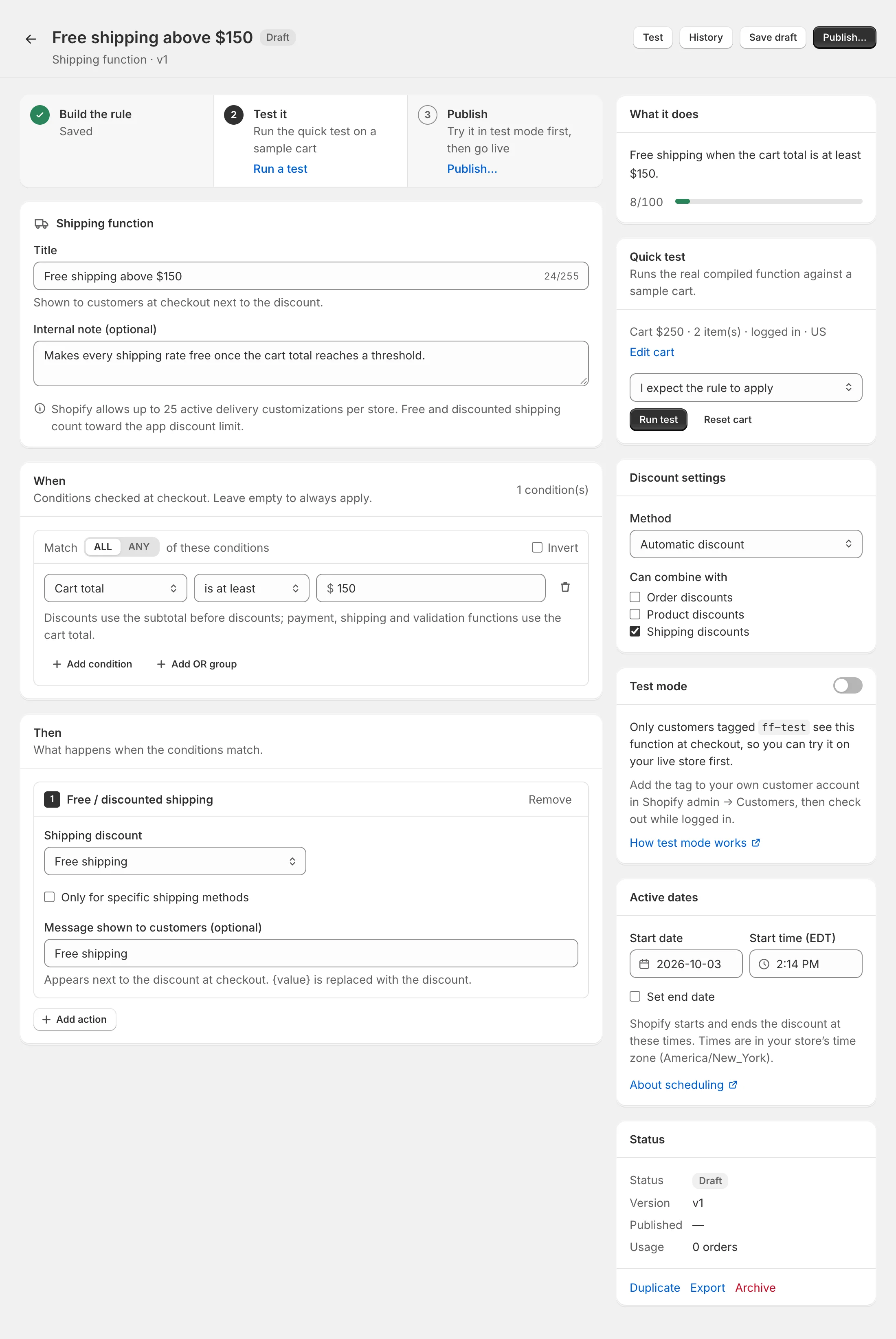
- Title — for discounts, customers see it at checkout next to the discount (for example Free shipping). For other kinds it’s only shown to your team.
- When — the conditions. Here, Cart total is at least 150.
- Then — the action. Here, Free / discounted shipping set to Free shipping.
Check the What it does card in the sidebar: it should read “Free shipping when the cart total is at least $150.” If it doesn’t say what you mean, adjust the conditions until it does.
Click Save draft to keep your work. Nothing reaches your checkout until you publish.
Step 3: Test it on a sample cart
The Quick test card runs the real compiled function against a sample cart — before anything is published.
- Click Edit cart to see the sample cart: two products worth $250, a logged-in customer and a US address. Change anything you like.
- Leave I expect the rule to apply selected and click Run test.
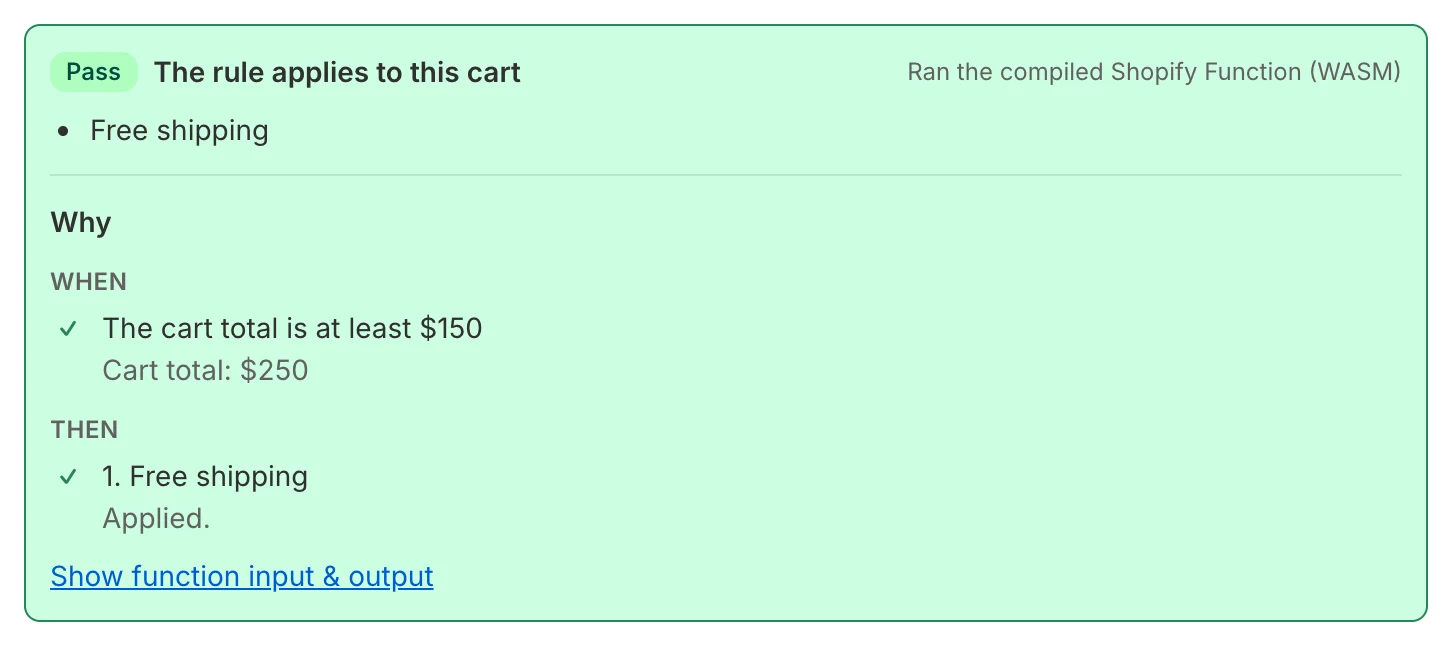
Try a cart under $150 with I expect the rule NOT to apply too. If a result surprises you, the Why section shows which condition didn’t match and what the cart had. More in Test a function.
Step 4: Publish in test mode
Click Publish… in the top right. FunctionFlow asks how the function should go live:
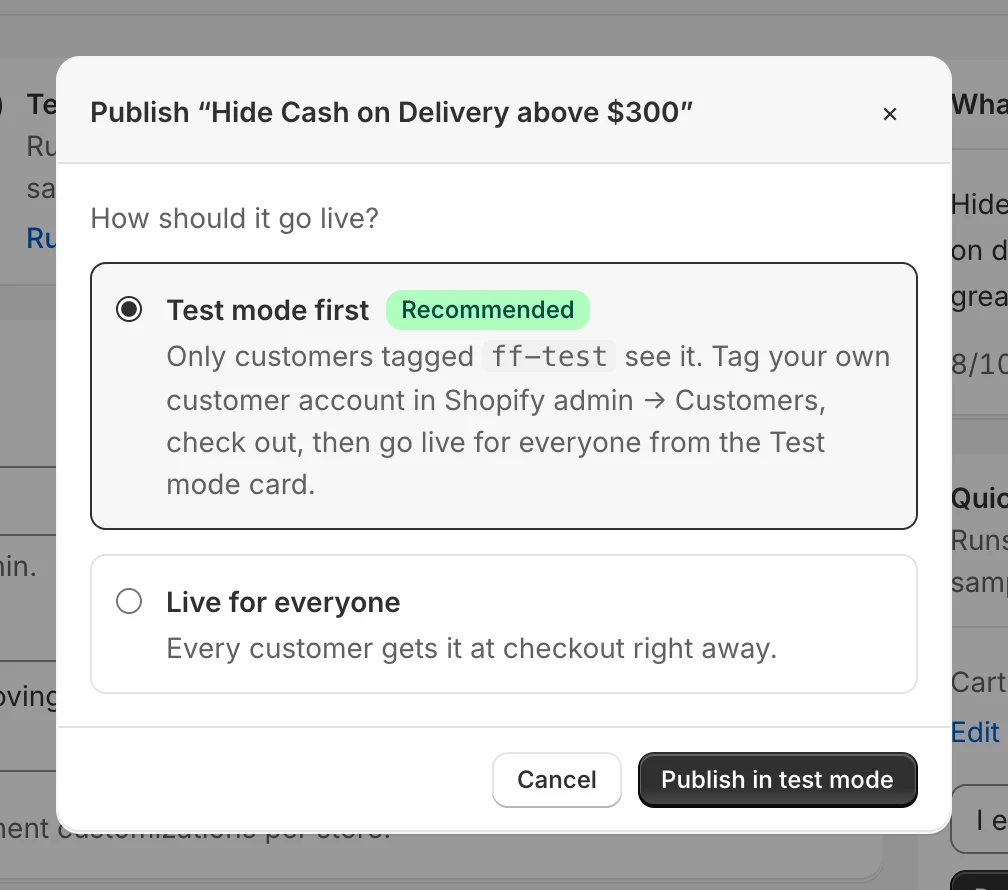
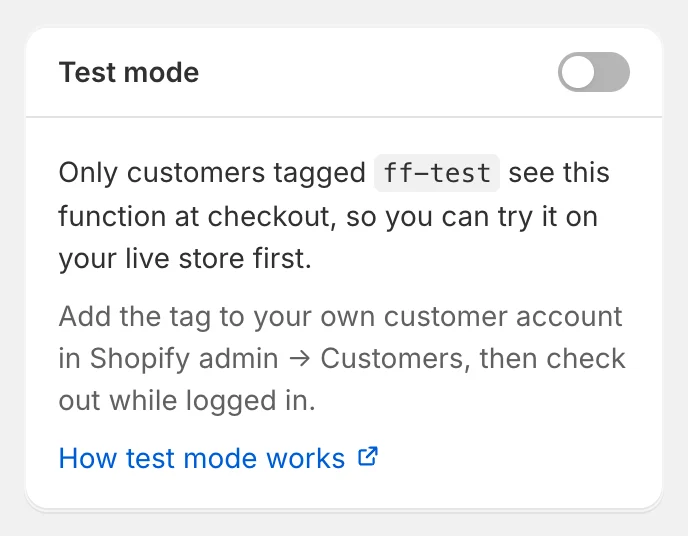
Choose Test mode first and click Publish in test mode. The function is now live in your store, but only for customers with the tag ff-test.
Step 5: Try it in your real checkout
- In Shopify admin, open Customers, find your own customer account and add the tag
ff-test. - In your online store, log in with that account, add more than $150 of products to the cart and go to checkout. Shipping should be free.
- Log out, or use a private window, and check out again: customers without the tag see your normal checkout.
Step 6: Go live for everyone
Back in FunctionFlow, open the function. In the sidebar’s Test mode card, click Go live for everyone. That’s it — every customer now gets free shipping over $150.
What’s next
- See how often the rule is used in Analytics.
- Learn every option in the visual builder and conditions.
- Schedule a rule for a sale with active dates.